Saturday, November 28, 2015

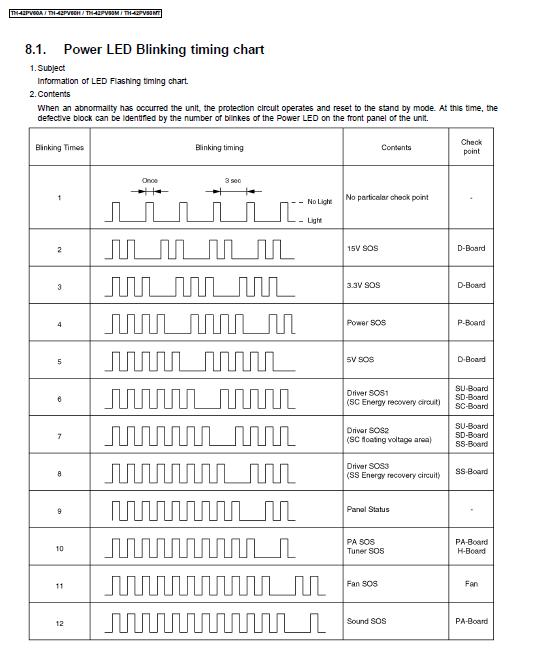
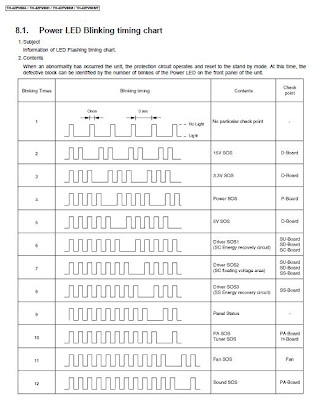
Panasonic th 42x20 Blink Code


Panasonic th 42x20 Blink Code

for 

TX-P42X20B
TX-P42X20D
TX-P42X20E
TX-P42X20L
TX-P42X25E
TX-P42X25ES
TX-PF42X20


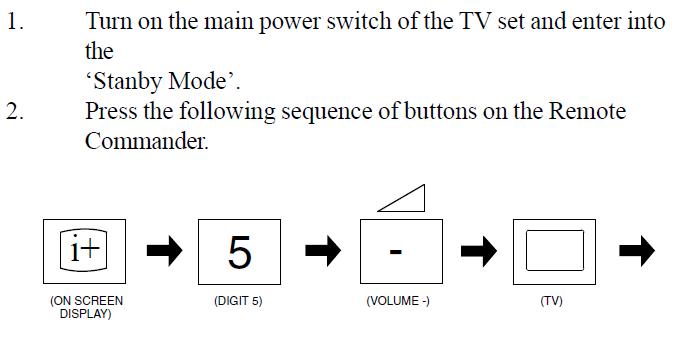
Enter IN Service Mode:


Friday, November 27, 2015

Sony Klv-32ex320 Service Mannual


Service Manual for 

Sony klv-32ex330
Sony klv-32ex330a
Sony klv-32ex330b
Sony klv-41ex430
Sony klv-41ex430a
Sony klv-41ex430b


Please Download From Below Link


https://www.dropbox.com/s/ul0gus72eqnzy6b/sony_kdl-32ex600_kdl-40ex600_kdl46ex600_chassis_az1-k.pdf?dl=


or


Download Here


Sony Software for bx300,ex300,,ex400,ex500,nx500

Applicable Models

KLV-22BX300,
 KLV-22EX300,
 KLV-26BX300,
 KLV-26EX300,
 KLV-32BX300,
 KLV-32EX300,
 KLV-32EX400,
 KLV-32EX500,
 KLV-32NX500,
 KLV-40BX400,
 KLV-40EX400,
 KLV-40EX500,
 KLV-40NX500,
 KLV-46EX400

Updation process:

Download and Transfer the Update File to Your USB Storage Device 
  1. Download the sony_tvupdate_2010_1539_ga_atv.pkg file to a temporary or download directory (please note this directory for reference) on your computer.
  2. Go to the directory where the file was downloaded and verify that the size of thesony_tvupdate_2010_1539_ga_atv.pkg file is 47,733,217 bytes.

    a. Right-click the sony_tvupdate_2010_1539_ga_atv.pkg file, and click "Properties".
    b.. On the "sony_tvupdate_2010_1539_ga_atv.pkg Properties" screen, verify that the "Size:" listed is "45.5 MB (47,733,217 bytes)".
    Note: The "Size on disk:" listed may be different. That is normal.
    c. If the file size is different than the "47,733,217 bytes", please download thesony_tvupdate_2010_1539_ga_atv.pkg file again.
  3. Format a compatible USB storage device to the FAT32 file system and connect it to your computer. View formatting instructions and the list of compatible USB storage devices.
  4. Transfer the sony_tvupdate_2010_1539_ga_atv.pkg file to the USB storage device:

    For Windows® XP operating system: Go to the directory where the file was stored, right-click thesony_tvupdate_2010_1539_ga_atv.pkg file and, from the menu, click "Send To...", and then click the drive (E.g. Removable Disk E:) that represents your USB device. The file will be copied onto your USB device.

    For Macintosh® OS X operating system: Drag and drop the sony_tvupdate_2010_1539_ga_atv.pkg file to the root folder of the USB device.

    Note: The update will not be performed if the name of the file is modified.
  5. Remove the USB device from your computer.
  6. Please continue to the next section.
Updating the Software
Note: The software update takes approximately 10 minutes to complete. During the update process, the screen on your BRAVIA television will display progress information, or may be blank. This is normal. Please do not remove the USB storage device until the update is complete. 
WARNING! Do not turn off the TV set or disconnect it from the power supply during the update process. Doing so may damage your TV set and make it unusable, or may require service.
WARNING! Do not press any button, except as instructed, until the update is complete. Doing so may damage your TV set and make it unusable, or may require service.
  1. Power on the TV.
  2. Insert the USB storage device into the USB port located on the side of the TV.
  3. Turn off the TV by pressing the POWER button on the TV set.
  4. Press the POWER button again.
  5. The POWER indicator will be green for 30 seconds, followed by the PIC OFF/TIMER indicator slowly flashing amber, and the STANDBY indicator is red.
  6. After several minutes, the TV will turn off and then turn back on to complete the update.
    CAUTION: During the firmware installation process, do not remove the USB device, or switch off the TV set or remove the power.
  7. Safely remove your USB device from the USB slot. The update process is now complete.


Download from below link


or


Wednesday, November 25, 2015

Sony KLV 26,32,40,46V300a Blink Codes

Sony KLV 26,32,40,46V300a Blink Codes


KLV-26V300A
KLV-40V300A
 KLV-26V300A
KLV-40V300A
KLV-26V300A
 KLV-40V300A
 KLV-26V300A
 KLV-40V300A
 KLV-32V300A
 KLV-46V300A
 KLV-32V300A
 KLV-46V300A
 KLV-32V300A
 KLV-46V300A
 KLV-32V300A
 KLV-46V300A


Saturday, November 7, 2015

Monday, October 19, 2015

Monday, October 12, 2015

Friday, July 31, 2015

VideoCon Lcd Software


Videocon lcd software update:

VJK32HF-ZMK

Software update: Go to service menu-> contrast-> press 9735
Entered in factory menu/

GO to usb update and select OK;


Please Download VIdeocon lcd software from below give link:


https://dl.dropboxusercontent.com/content_link/LXyyzTc5OMJhhcsgsN2ikkIB2QU3qvCoM5cRtccoR141dRjAtbcQXspGmEkPcaLV?dl=1

or

https://www.dropbox.com/s/m4l8s7rujlen1wn/Software_TCL-F3380_VJK32_VID.rar?dl=1


Tuesday, June 30, 2015

PanasoncTH-37PV8P TH-37PX8B TH-42PV8P TH-42PX8B 42PX8E Blink Code for all


PANASONIC_TH-37PV8P_TH-37PX8B_TH-42PV8P_TH-42PX8B_TH-42PX8E_CHASSIS_GPH11DE
Blink Code

PanasoncTH-37PV8P TH-37PX8B TH-42PV8P TH-42PX8B 42PX8E Blink Code for all


Saturday, June 20, 2015

Sony 26, 32, 40 NX400, 26, 32, 40 NX500 LED Blink codes


Sony 26NX400, 32NX400, 40NX400 Led Blinking Chart

Sony 26NX500, 32NX500, 40NX500 Led Blinking Chart

Sony Standby Led Blinking for 26NX400, 32NX400, 40NX400 Led Blinking Chart


Sony Standby Led Blinking for 26NX500, 32NX500, 40NX500 Led Blinking Chart


Saturday, June 13, 2015

sony klv 22t550a, klv-32t550a Led Blink codes


Sony klv 22t550a, 
klv-32t550a Led Blink codes

Sony klv 22t550a, 32t550a Led Blinking Chart
Sony Standby Led Blinking for klv 22t550a32t550a Led Blinking Chart


Sunday, June 7, 2015

Sony kdl-32ex710, 40ex710, 46ex710, 55ex710, 55ex711, 55ex713 Led Blinking Chart


Sony kdl-32ex710, 40ex710, 46ex710, 55ex710, 55ex711, 55ex713 Led Blinking Chart
Sony Standby Led Blinking for kdl-32ex710, 40ex710, 46ex710, 55ex710, 55ex711, 55ex713 Led Blinking Chart


Saturday, June 6, 2015

Pioneer plasma service mode, factory mode 3rd,4th,5th,6th, 7th generation Plasma Models:


ENTER SERVICE MODE TO PIONEER PLASMA TVs
Pioneer plasma 3rd,4th,5th,6th, 7th generation Models:
Factory mode, Service Mode

Plasma Pioneer 3rd Generation Models procedure:
  • Make sure the set is in standby
  • Hold down INPUT + VOL+ buttons on the panel.
  • Turn on the Plasma Pioneer at the panel.
  • The service menu will come up.


Plasma 4th, 5th, 6th & 7th generation models:
  1. Make sure the Plasma and the Media Box are in standby.
  2. Using the remote control, Press DISPLAY button (only press, do not hold) and wait 5 seconds.
  3. Press {LEFT + UP + LEFT + RIGHT + POWER buttons.
  4. The Pioneer Plasma will turn on and be in the service menu.

Wednesday, June 3, 2015

Samsung Lcd ,Led tv Factory mode ,Service mode


Samsung Lcd ,Led tv Factory mode ,Service mode

Method 1:


step1.  Goto standby mode (power off).

step 2. press the {INFO} {MENU} {MUTE} {POWER} buttons on the remote. 

if INFO is not in remote then 
press the {Display} {MENU} {MUTE} {POWER} buttons on the remote. 

 The TV will turn On with the Service Menu displayed. 
* Press the {POWER} button to exit the Service Menu.


or

Method 2:

 In quick sequence on the remote press: 
{MUTE} {1} {8} {2} {POWER} buttons. 

# The TV will turn On with the Service Menu displayed. 
ADJUSTMENT - TEST PATTERN - SET OPTION BYTE - FACTORY RESET 

# Select the function and use the {VOL+} button to enter. 
# Save settings and exit by pushing {MUTE} twice then {POWER}.


Monday, June 1, 2015

Panasonic Plasma Tv Service Mode, Factory Mode, Service menu


How to Get in Service Mode on a Panasonic Plasma TV

 
Panasonic plasma TV sets have special service modes that give you much more control over the set than do the regular setup menus. These modes are designed for use by factory-trained technicians and, as such, are not easily entered. While they give you great of control over your set's performance and can help you to get the best possible picture quality through fine calibration, they also give you access to settings that can severely degrade the set's image quality and even permanently damage it.
Step 1
Press your Panasonic plasma TV's "Power" button to turn it on.
Step 2
Press and hold the "Volume Down / -" button on your set's front or side panel.
Press the "Status" button on your set's remote control three times while you are still holding the "Volume Down / -" button on your TV.
Step 4
Press the "R" button on your remote to exit the "IIC" mode. To exit the main "CAT" service mode, press the down arrow on your remote control to enter "ID" mode and then press the "Power" button to turn your set off and on.
You should see this as your display:

ADJUST {Picture Adjustment}
WB-ADJUST {White Balance Adjustment}
OPTION {Option Setting}
V-SUS {V-SUS Adjustment}
AGING
SRV-TOOL {Service Tool}
"1" & "2" buttons move through options

This is your first button press while in the above display:
3) Press the "2" button once to select "SRV-TOOL".

Your display will look like this:

SRV-TOOL VIVID
00 (note that this 00 is high lighted in orange. Just leave it there. Do not scroll away from this)

1,2:MAIN SELECT
9 :Picture MANU SELECT
OK:ENTER

4) Then press the "OK" button to access it. Note: Do not scroll. you should not highlight the OK selection on your screen. You are simply hitting the "OK" button on your remote.

5) Using the cursor keys, highlight the right side of the last item "PTCT :00.00.00.00.00" Note the "right side" of the last item is a blank box for time being.

Your movements with the remote control cursor on your remote should be five presses down and one press to the right in order to accomplish step #5

6) Then press and hold the {MUTE} button for 3 seconds.

Time and Count will be displayed in red color:
I got Time 00000:48 Count 0000020


__TIME = Hours : Minutes of operation.
COUNT = Times the Plasma was powered on.

7) To exit, unplug the power cable. Or hold down the exit
Button on the remote (results in the TV turning off/on automatically

My results from the step #6 are:
00000:48 Count 0000020

That means I have 48 minutes that the plasma has been powered up, and I turned the TV on 20 times.
This was because I was struggling with the set of instructions I had. You will not have to go through my trials and tribulations since I have expanded the steps for us noobs. Hopefully they will be quite clear. Do not considered them "dumbed down", but rather the steps are now much safer in regard to any of us making an incorrect entry and damaging our TV's. Hope you all appreciate this.

Saturday, May 30, 2015

Sony Lcd ,Led tv Service Mode, Service menu, Factory Mode


Sony Lcd ,Led tv Service Mode, Service menu, Factory Mode

First power off your TV using the remote, then press following buttons quickly on your TV remote:
Display (or i+) + 5 + Volume Up + Power
It'll show the hidden service menu on your TV screen.
Once you enter into service menu, you can press Menu (or Options) button again on your remote to switch between various service modes such as Digital, Chassis and VPC.
To navigate between available options press 1 or 4 buttons. To change or modify their values press 3 or 6 buttons.
To save your changes, just press Mute + 0 (or Enter) buttons on the remote.
To restore settings to factory defaults, press 8 + 0 (or Enter) buttons.
PS: For some new models the above mentioned method might not work. You can try following key sequence to access service menu in those new models:
While TV is on, press Left + Right + Mute + Center button + Mute + Menu buttons.
NOTE: You can also press Display (or i+) + 5 + Volume Down + Power buttons on your remote to enter in Self Check mode. This mode shows the total usage hours of your Sony TV set.


Friday, May 29, 2015

Sony LCD klv-26a10,32a10,40a10 Blink Code

Blinks Code For
Sony Lcd Klv26a10 LED Blink
Sony Lcd Klv32a10 LED Blink
Sony Lcd Klv40a10 LED Blink

Sony Lcd Blink Code For A10 Model


Wednesday, May 27, 2015

Toshiba LCD, LED tv Factory Mode

Toshiba LCD, LED Factory Mode

Service Menu of Toshiba LCD tv


1. Press the {MENU} button on the remote.
2. Highlight the "Picture" icon.
3. Press the {9} {3} {0} {1} buttons on the remote control. 
The Service Menu will be displayed with the following Modes:
"Options" - "Adjustments" - "Selections"
4. Use the {OK} button to access and navigate through these Modes
5. To change values use {VOL +} {VOL-) {P+} {P-}

6. To exit, press the {MENU} button.

Saturday, April 18, 2015

Sony Klv 32D300, 32v300 Blinks

Blinks Code For
Sony Lcd Klv26d300a
Sony Lcd Klv26V300g
Sony Lcd Klv32d300a
Sony Lcd Klv32v300g
Sony Lcd Klv40d300a
Sony Lcd Klv40v300g
Sony Lcd Blink Code For 32d300a
Sony Lcd Blinking times For 32v300a


To Download Sony d300,v300 Blinking chart
Click here To Download

Saturday, March 28, 2015

Factory Mode in Pioneer Plasma PDP-433PE/PU/PG

How to Open Factory Mode in Pioneer Plasma PDP-433PE/PU/PG.
How to Open Service Mode in Pioneer Plasma PDP-433PE/PU/PG


Follow These Steps:
1. Press PowerButton for both reciever and pdp (Power OFF).
2. Perfrom the following operations within 3seconds using the remote controller unit.
   press the "MENU" key.
   press the "ENTER" key.
   press the "0" key.


Now You are in factory mode:

For More Information download Below image:


Friday, March 20, 2015

Pioneer Plasma Service Menu/ Factory mode


Pioneer Plasma Service Menu/ Factory mode

Pioneer Plasma Service menu

Make sure the plasma and the media box is in standby( 1. go in standby mode). 
Press DISPLAY on the remote (just press, do not hold) (2. Press DISPLAY button).
Wait 3 seconds 
Press LEFT, UP, LEFT, RIGHT and POWER (on the remote) 

If done correctly, the plasma turns on and the INFORMATION page is displayed

Tuesday, February 24, 2015

Panasonic TH-L42U30 blink codes led flashing codes

Panasonic PLASMA th-42u30U BLINKS

Panasonic PLASMA th-42u30K BLINKS

Panasonic PLASMA th-42u30 BLINKS

Power led blinking timing chart
power led blinking 1 time
power led blinking 2 times
power led blinking 3 times
power led blinking 4 times
power led blinking 5 times
power led blinking 6 times
power led blinking 7 times
power led blinking 8 times
power led blinking 9 times
power led blinking 10 times
power led blinking 11 times
power led blinking 12 times


Saturday, February 14, 2015

Sony DC ALERT1,2,3


DC ALERT1: 
3.3V, 2.4V,1.8V LVP-Voltage Protection (Mostly occurs when led flash 3 times of sony lcd).

DC ALERT2:
5V Low-Voltage Protection (Mostly occurs when led flash 2 times of sony lcd).

DC ALERT3: 
Panel 5V,12V protection (Mostly occurs when led flash 1 time of sony lcd).

Thursday, February 12, 2015

SONY 26,32,40S400 LCD Blink Codes

Blinks Code For
Sony Lcd Klv26S400a
Sony Lcd Klv26S400g
Sony Lcd Klv32S400a
Sony Lcd Klv32S400g
Sony Lcd Klv40S400a
Sony Lcd Klv40S400g
Sony Lcd Blink Code For 32v400a
Sony Lcd Blinking times For 32v400a


For More information about Repairing And tips of Repairing
Feel Free to call Mr. yogesh 9811440932(Delhi)


To Download Sony v400 Blinking chart
Click here To Download

Friday, February 6, 2015

Panasonic TH-l32X22D, Th-L32X24D Led Blink Codes

Panasonic LCD TH-l32X22D BLINKS

Panasonic LCD TH-l32X24D BLINKS

CHASSIS KM06

Power led blinking timing chart
power led blinking 1 time
power led blinking 2 times
power led blinking 3 times
power led blinking 4 times
power led blinking 5 times
power led blinking 6 times
power led blinking 7 times
power led blinking 8 times
power led blinking 9 times
power led blinking 10 times
power led blinking 11 times
power led blinking 12 times

Service Mode Adjustment 
1. Press the “RECALL” button on the remote control and press “ -” vol button on the LCD panel. 
2. Press button number 1 on the remote control to select for Adjustment. 
3. Self Check to Exit. 

Self Check Mode 
1. Press the “MENU” button (on the remote control) and the “DOWN” button on the LCD panel. 
2. Press ON/OFF button on the panel to Exit. 


Hotel Mode Adjustment 
1. Press the “VOLUME DOWN” button on the TV panel and simultaneously press the AV button on the remote control 3 times to enter Hotel Mode. 
2. Set Hotel mode “on”, then press “EXIT” to come out.


LED blinkChart


Click Here to Download


Boards Locations


Click Here to download

Sunday, September 23, 2012

Panasonic PLASMA TH42PV60A BLINKS

Panasonic PLASMA TH42PV60A BLINKS

Panasonic PLASMA TH42PV60H BLINKS

Panasonic PLASMA TH42PV60M BLINKS

Panasonic PLASMA TH42PV60MT BLINKS

GP9DE CHASSIS

Power led blinking timing chart
power led blinking 1 time
power led blinking 2 times
power led blinking 3 times
power led blinking 4 times
power led blinking 5 times
power led blinking 6 times
power led blinking 7 times
power led blinking 8 times
power led blinking 9 times
power led blinking 10 times
power led blinking 11 times
power led blinking 12 times


Click Here to Download


Boards


Click Here to download

Tuesday, August 7, 2012

Sony LED LCD ex 300,400,600 blinking code


Sony LCD KLV26EX300 BLINKING CODE
Sony LCD KLV32EX300 BLINKING CODE
Sony LCD KLV40EX300 BLINKING CODE
Sony LCD KLV46EX300 BLINKING CODE
Sony LCD KLV26EX400 BLINKING CODE
Sony LCD KLV32EX400 BLINKING CODE
Sony LCD KLV40EX400 BLINKING CODE
Sony LCD KLV46EX400 BLINKING CODE

Sony LED KLV26EX600 BLINKING CODE
Sony LED KLV32EX600 BLINKING CODE
Sony LED KLV40EX600 BLINKING CODE
Sony LED KLV46EX600 BLINKING CODE

Sony LCD KLV26EX300 BLINKING TIMES
Sony LCD KLV32EX300 BLINKING TIMES
Sony LCD KLV40EX300 BLINKING TIMES
Sony LCD KLV46EX300 BLINKING TIMES
Sony LCD KLV26EX400 BLINKING TIMES
Sony LCD KLV32EX400 BLINKING TIMES
Sony LCD KLV40EX400 BLINKING TIMES
Sony LCD KLV46EX400 BLINKING TIMES

Sony LED KLV26EX600 BLINKING TIMES
Sony LED KLV32EX600 BLINKING TIMES
Sony LED KLV40EX600 BLINKING TIMES
Sony LED KLV46EX600 BLINKING TIMES
1,2,3,4,5,6,7


For More information about Repairing And tips of Repairing
Feel Free to call Mr. yogesh 9811440932(Delhi)


To Download Sony EX300,EX400,EX600 Blinking chart
Click here To Download

Sony Lcd Klv32v400a Blink codes

Blinks Code For
Sony Lcd Klv26v400a
Sony Lcd Klv26v400g
Sony Lcd Klv32v400a
Sony Lcd Klv32v400g
Sony Lcd Klv40v400a
Sony Lcd Klv40v400g
Sony Lcd Blink Code For 32v400a
Sony Lcd Blinking times For 32v400a


For More information about Repairing And tips of Repairing
Feel Free to call Mr. yogesh 9811440932(Delhi)


To Download Sony v400 Blinking chart
Click here To Download

LG LCD Full Hd LVDS CABLE

LG lcd full hd lvds cable configuration
lg 42" LCD full HD LVDS Conector Configuration
Full Hd lvds Configuration
LG lvds 51 Pin configuration
LG t-Con 51 pin configuration


Monday, July 23, 2012

Sony Lcd Klv32t400a Blink codes

Blinks Code For
Sony Lcd Klv26t400a
Sony Lcd Klv26t400g
Sony Lcd Klv32t400a
Sony Lcd Klv32t400g
Sony Lcd Klv40t400a
Sony Lcd Klv40t400g
Sony Lcd Blink Code For 32t400a


For More information about Repairing And tips of Repairing
Feel Free to call Mr. yogesh 9811440932(Delhi)


To Download Sony t400 Blinking chart
Click here To Download